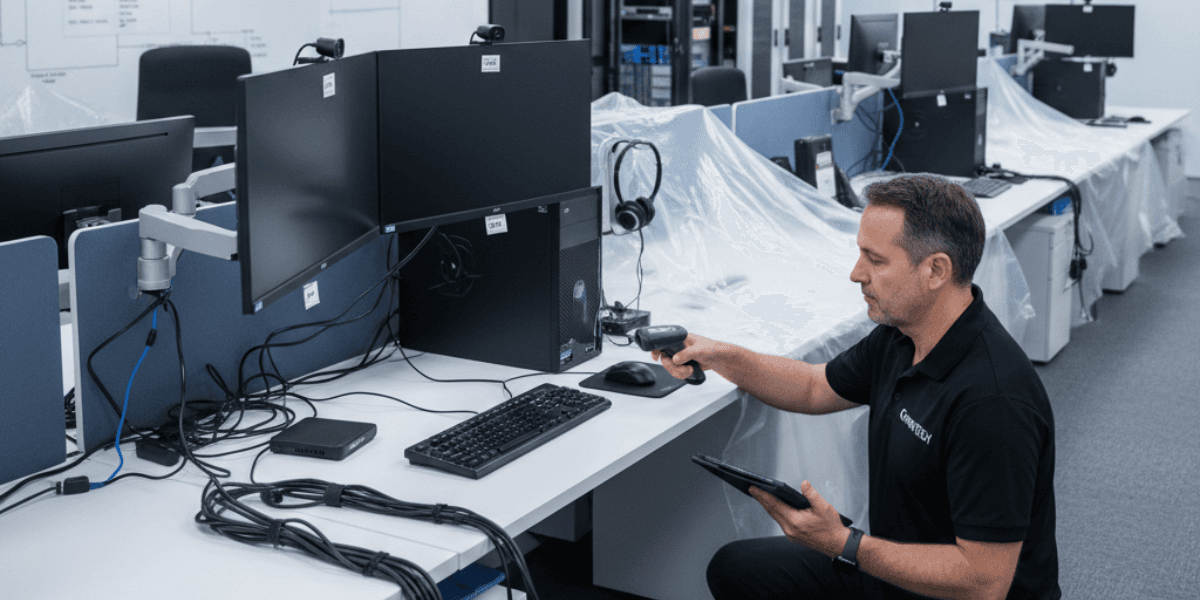
Why Desktop Relocation Is a Productivity Issue, Not Just an IT Task
Employee productivity during an office relocation often comes down to one practical question: Can people work as soon as they arrive at the new site? In most organizations, the answer depends on desktop readiness. Desktops, monitors, docks, peripherals, and user configurations are not equipment to deliver. They are the access layer to business applications, identity systems, collaboration tools, and customer data.
When desktop relocation is handled as a basic transport activity, the result is predictable: delayed logins, missing peripherals, access problems, and an IT help desk buried under urgent tickets. When desktop relocation is treated as a core part of an IT relocation plan, teams return to steady operations quickly, and leadership avoids the quiet costs that show up after go-live.
This blog explains how desktop relocation affects productivity, why downtime extends beyond relocation day, and what a structured approach looks like when the goal is business continuity.
Why Desktop Relocation Is a Productivity Risk, Not a Simple IT Workstream
Office relocation programs often emphasize visible milestones: facilities handover, furniture installation, floorplan alignment, and meeting room readiness. Desktop relocation can feel straightforward by comparison: disconnect, pack, transport, reconnect.
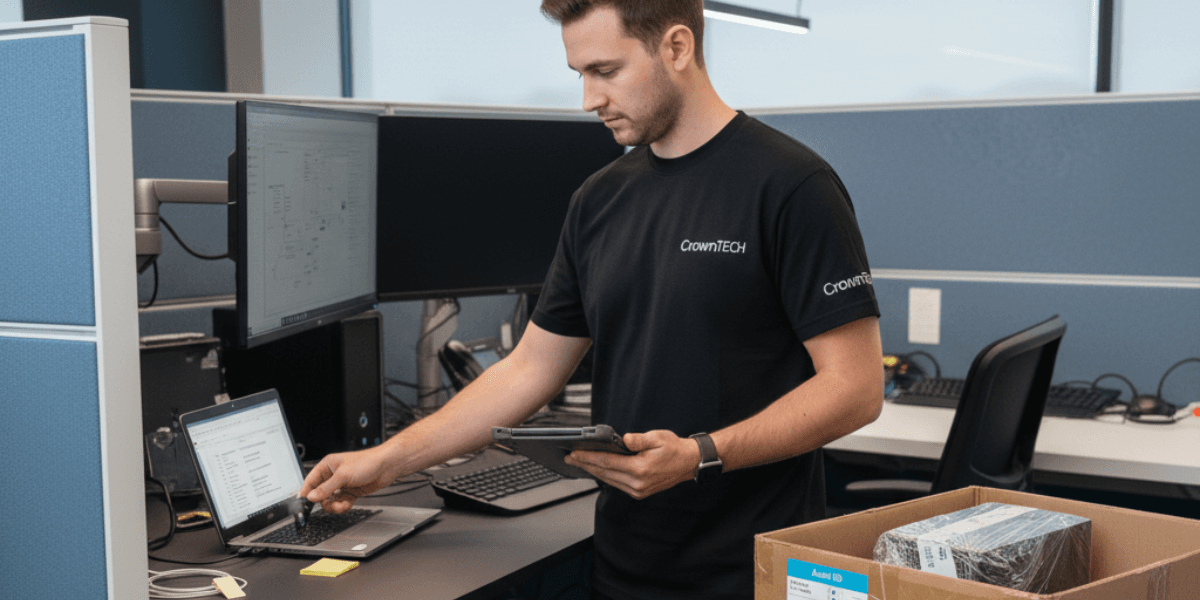
In practice, desktop readiness depends on technical and operational factors that are easy to underestimate:
identity and access management (AD, SSO, MFA)
network and VLAN configuration
endpoint policies, encryption, and security tooling
docking station models and peripheral compatibility
user-specific settings and role-based applications
printer mappings and shared resource access
Every Workstation Is a Dependency Chain
For most employees, the workstation serves as the gateway to their daily tasks. If that door stays closed, workflows stall quickly.
A standard desktop setup connects users to:
Business applications
ERP, finance tools, project systems, and role-specific software.
Email and collaboration platforms
Messaging, video meetings, shared calendars, and document collaboration.
Customer and internal systems
Customer records, internal dashboards, HR platforms, and reporting tools.
Security and authentication services
Domain access, certificates, encryption keys, and endpoint security agents.
When one part of this chain breaks, productivity drops immediately. Many departments have no real workaround if access, authentication, or application availability is delayed.
The Real Cost of Desktop Downtime
Desktop downtime is often underreported because it appears in small pockets across individuals. At scale, the cost becomes obvious.
Common patterns include:
Downtime also hits expensive work first. Professional services, finance, sales operations, and customer support all carry measurable revenue and service impact when system access is delayed.
Common Desktop Relocation Problems That Reduce Productivity
Underplanned IT relocation projects tend to repeat the same failures. They rarely look dramatic, but they disrupt operations fast.
Endpoints are installed before patching, switching, or VLAN assignment is finalized. Users cannot connect, and IT spends time troubleshooting what is actually an infrastructure sequencing issue.
Monitors, docks, power supplies, and cables get separated from devices or users. The desktop is present, but the workstation is incomplete.
Mapped drives, printers, profiles, and role-based applications do not align with the new environment. Users may log in, but still cannot complete core tasks.
Equipment lands on the wrong floor, in the wrong department, or at the wrong seat. Time is lost locating assets, restaging them, and rechecking assignments.
If the plan assumes IT will resolve issues in real time, the help desk becomes the bottleneck. Users wait, escalations increase, and productivity recovery slows.
Each of these issues is avoidable. The difference is usually in inventory discipline, documentation quality, sequencing, and validation.
Why Downtime Continues After Relocation Day
Relocation day often gets treated as the finish line. Operationally, it’s the start of stabilization. A relocation can look successful on a timeline while productivity continues to leak across teams.
Three drivers typically extend downtime:
Repeated delays train users to expect friction. They postpone tasks, avoid time-sensitive work, and switch into “waiting for IT” mode, which reduces throughput.
When desktop issues flood in, IT shifts from planned execution to triage. That slows stabilization work and increases mistakes under pressure.
A missing dock turns into a temporary setup. A printer mapping becomes, “use the other floor.” A weak Wi‑Fi spot becomes “take calls in the hallway.” These workarounds persist and quietly lower productivity.
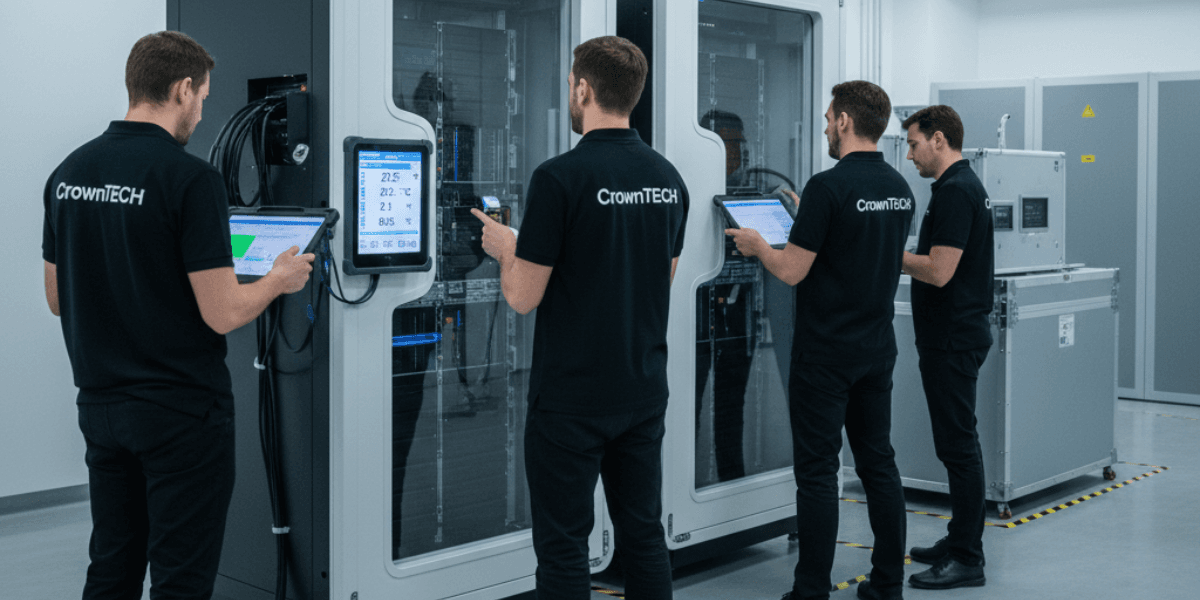
A solid desktop relocation plan includes structured stabilization: validation, rapid remediation, and clear closure criteria by floor or department.
Desktop Relocation Must Align With Network and Infrastructure Readiness
A workstation becomes productive only when the supporting environment is ready. Endpoint teams and network teams need the same sequence plan.
For desktops to function immediately, the destination requires:
active network connectivity at each seat (patched, labeled, tested)
Correct switching and VLAN configurations aligned to user groups
working DNS/DHCP and authentication pathways
validated Wi‑Fi coverage where desktops or docks depend on wireless
access to print services, file services, and core applications
Desktop installation should follow readiness verification, not the transport schedule. Many productivity failures come from deploying endpoints into a site that is physically ready but technically incomplete.
For projects that include server relocation, endpoint planning also needs to align with application cutovers and access patterns, especially for authentication services, file services, and legacy systems.
What a Structured Desktop Relocation Approach Looks Like
Organizations that protect productivity during an office relocation treat each workstation as a tracked operational unit with clear readiness checks.

Build an accurate inventory, confirm ownership, and map each user to a destination seat. Document peripherals and special requirements (dual monitors, secure devices, adapters).
Labels should match the relocation plan: building, floor, department, and seat ID. Generic labels create sorting work later, delaying installation.
Endpoints require consistent shutdown, packing, and secure handling practices aligned to compliance expectations and asset control.
Install endpoints in phases aligned to infrastructure readiness. Prioritize high-dependency teams based on business impact.
Test power, network, login, access to core applications, and peripheral function. Validation prevents a large portion of relocation-day tickets because issues are caught before users start work.
This structure reduces uncertainty, speeds recovery, and lowers support demand.
Employee Experience Is an Operational Metric
Leadership may evaluate success through schedule and budget. Employees evaluate it through friction: can they access systems and complete work without delays?
When desktops are not ready, frustration rises quickly and escalations follow. When desktops are validated and ready at arrival, productivity returns faster, ticket volume drops, and the relocation feels controlled.
Desktop readiness is one of the clearest signals users receive about the quality of an IT relocation.
Why Desktop Relocation Requires IT Relocation Expertise
General movers can transport equipment safely, but desktop readiness requires technical oversight and accountability that standard relocation vendors cannot provide.
Desktop relocation specialists can:
That expertise matters even more when desktop relocation is part of a broader IT relocation that includes conference room technology, printer fleets, network cutovers, and server relocation coordination.
Conclusion
A successful office relocation does not end with equipment delivery. Productivity recovers when employees can authenticate, access applications, connect to collaboration platforms, and complete core workflows without delay.
Desktop relocation supports that outcome when it is planned and executed as an IT relocation discipline: accurate inventories, user-to-seat mapping, infrastructure sequencing, and post-relocation validation. Those steps reduce downtime, limit help desk load, and create a controlled stabilization period instead of a prolonged disruption cycle.
If your organization is planning an office relocation, treat desktop readiness as a business continuity priority. The fastest way back to normal operations starts at the workstation.
Are you planning an office relocation, IT relocation, or server relocation in Ontario?
Let CrownTECH® handle the complexity, from desktop deployment and infrastructure coordination to phased activation and post-move validation—so your team stays productive through every stage.
Call Now